Hotline: 1-866-986-BYOD
Cyber Device Manager for Windows 10 and Windows 11
Codeproof makes Windows device management simple. One signed MSI installs the robust Codeproof Agent and, in the same click, sets up the device's built-in Windows MDM enrollment. No separate installers, no fragile orchestration, no IT scripts to babysit. Enroll devices fast, push policies and apps at scale, and keep endpoints secure and compliant.

One install, two management channels working side by side: built-in Windows MDM for baseline policies delivered through the OS's native enrollment stack (the OMA-DM / SyncML protocol Microsoft already ships with Windows), and the Codeproof Agent for rich inventory, software lifecycle, patch automation, kiosk/POS, remote scripts, and real-time actions that go beyond what native MDM exposes. Both are configured by the same MSI in a single click. Deploy via SCCM, Intune, Group Policy, login script, or a provisioning package.
The Codeproof Agent is built like an enterprise endpoint should be: a hardened Windows system service for policy, inventory, and remote actions; a system-tray UI that gives the end user visibility into device status and self-service options; and a standalone hardened Kiosk app for retail, hospitality, and field-ops scenarios where the device must do exactly one job and nothing else. Three components, one signed installer, one cloud console.
Enrollment options
Codeproof supports two Windows enrollment models so you can match the right approach to each fleet, without changing platforms.
Per-user enrollment
The fastest path for BYOD and self-service rollouts. The user installs a one-click enrollment package from their own Windows account (Settings → Access work or school). The Codeproof Cyber Device Manager activates immediately and IT-defined policies, apps, and security baselines take effect.
Best for: employees enrolling personal laptops, hybrid workers, contractors, and short-term assignments where the user owns the device.
Per-device enrollment
The right choice for corporate-owned hardware and shared machines. Enrollment applies at the device level and persists across every user that signs in. Only IT can remove the enrollment, so the device stays managed for its entire lifecycle.
Best for: imaged corporate laptops, kiosks, shared workstations in retail or healthcare, lab and classroom devices, and any fleet where the device (not the user) is the unit of management.
What you can manage
Command center
Execute instant actions from the cloud console. Lock, wipe, reboot, send message, run scripts, install or remove apps, and refresh policies across a single device or a group.
Policy configurator
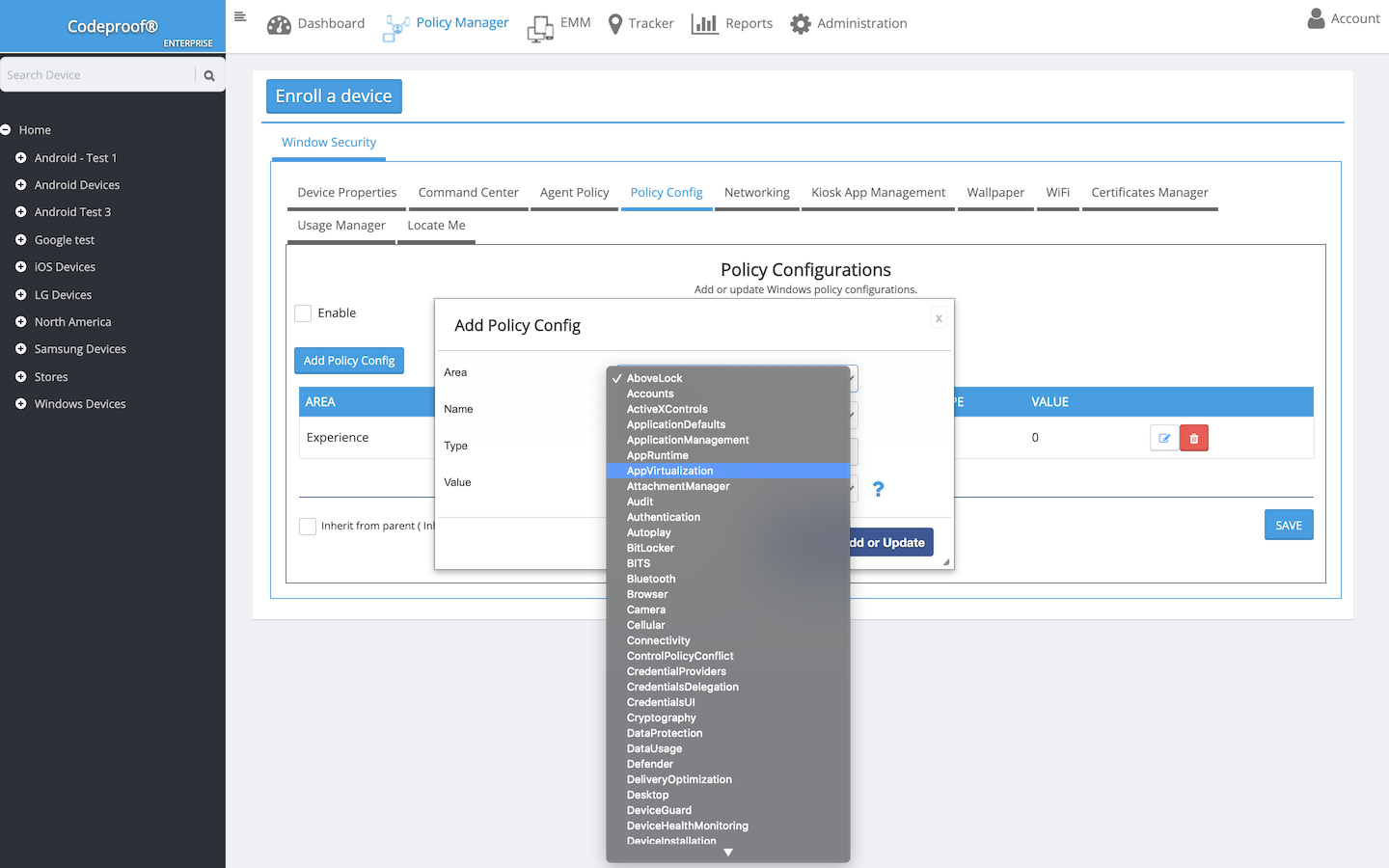
Configure more than a thousand Windows settings, including browser controls, application restrictions, desktop settings, local account policies, password complexity, and device hardware access.
Patch management
Automate Windows updates with maintenance windows, deferrals, deadlines, and restart control. Report on update status and compliance so devices stay secure without disrupting users. Optional application patching supports common third-party apps via managed catalogs.
Application lifecycle
Deploy line-of-business and store apps at scale. Version and stage rollouts by device group. Enforce allow or deny lists, manage install context and silent parameters, and remove software that violates policy.
Kiosk and POS
Codeproof ships a dedicated, hardened Kiosk app for Windows, not a thin wrapper over Assigned Access. Configure single-app or multi-app kiosk for retail, hospitality, education, and field operations. The Kiosk shell replaces the default Windows shell, blocks Control Panel, Task Manager, USB autoplay, and unauthorized apps, survives reboots with auto-launch and watchdog restart, and is fully managed from the Codeproof console using the same enrollment, the same policy engine, and the same remote actions.
Use it for point-of-sale terminals, self-service check-in, digital signage, classroom devices, warehouse scanners, and shared workstations. Lock the device to one POS app, or expose a small curated set with a tiled launcher. End users can't escape the kiosk; IT can switch the device back to a normal desktop with a single policy push.
Networking and connectivity
Push Wi-Fi and VPN profiles, certificate chains, and trusted roots. Configure a systemwide proxy for CIPA compliant web filtering in K-12 and regulated environments. Users cannot bypass managed network policies.
Security and compliance
Cybersecurity controls
Enforce Windows security baselines from one console. Manage Windows Defender Antivirus, Windows Firewall (allow/block by app, port, or address, per Domain/Private/Public profile), SmartScreen, removable media policies, and local admin restrictions. Configure secure DNS, web proxy, and certificate pinning to reduce attack surface.
Encryption with BitLocker
Enable BitLocker drive encryption with a single toggle. Recovery keys automatically escrow to Azure Active Directory so IT can recover encrypted drives without user assistance. Choose cipher (XTS-AES-256 by default), require backup-before-encryption, allow standard user encryption for silent AAD-joined rollouts, and enable automatic recovery-password rotation. BitLocker To Go enforcement on removable drives keeps data on encrypted media only.
Device restrictions and hardening
One-click toggles disable risky surfaces and close common data-exfiltration paths across your fleet. Group by intent:
- Hardware: disable camera, Bluetooth, microphone access for apps
- Removable storage: block USB drives entirely, make USB read-only, or require BitLocker To Go before writes
- Cloud / data exfiltration: block OneDrive personal sync, disable Cortana, limit telemetry to the Security level
- Attack surface reduction: block Developer Mode (no sideloading), block Remote Assistance, disable Windows Hello-bypass paths
Remote actions
Remotely lock or wipe a device, rotate recovery keys, push policy refresh, or trigger a compliance remediation script. Protect data when devices are lost, stolen, or reassigned.
Inventory, location, and reporting
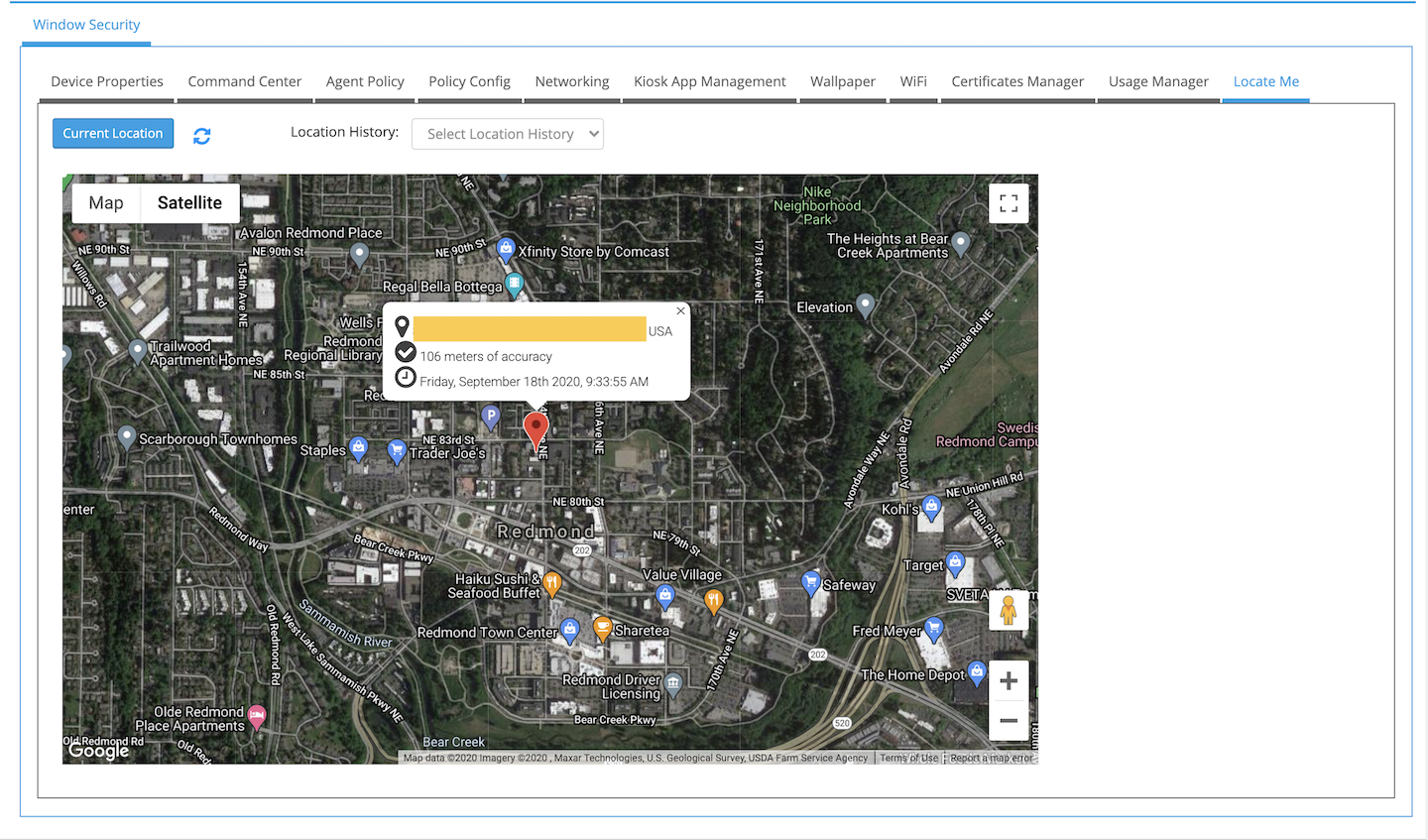
Collect detailed hardware and software inventory, device health, and policy status. View approximate device location for laptops that support it. Export reports for audits and frameworks like CIS and NIST alignment.
Certificates and identity
Deploy client certificates and trusted roots for secure Wi-Fi, VPN, and application access. Configure SSO related policies where supported and keep credentials out of end user workflows.
Device usage and experience
Control screen timeout, account options, and session limits. Schedule off hours shutdown or sleep to reduce costs. Standardize the experience with corporate wallpaper and lock screen across device groups.
Wi-Fi management
Push enterprise Wi-Fi profiles silently to the fleet. Support WPA2/WPA3-Personal with managed passphrase or WPA2-Enterprise with certificate-based authentication (EAP-TLS). Auto-connect to corporate SSIDs, hide network details from users, and mark networks as non-roaming so devices stay on trusted Wi-Fi.
VPN management
Deliver always-on enterprise VPN with Windows VPN v2 profiles. Codeproof supports IKEv2 with EAP-MSCHAPv2, split-tunnel or force-tunnel routing, trusted network detection, and per-app VPN rules so only corporate apps route through the tunnel. Combine with deployed root and client certificates for zero-prompt connection.
Firewall management
Configure Windows Firewall from the cloud across all three profiles: Domain, Private, and Public. Set the default inbound and outbound action per profile and push custom allow/block rules by application path, port range, protocol, or remote IP. Users cannot disable the managed firewall.
Certificate management
Distribute and rotate certificates at scale (root CAs, intermediates, and per-device client certs) to keep Wi-Fi, VPN, and app connections trusted without user prompts.
Custom branding
Publish organization wallpaper and lock screen images by role or location.
Web proxy and content filtering
Push systemwide proxy settings with optional PAC URL, lock the browser into a managed proxy, and block bypass for CIPA-compliant web filtering in K-12 and regulated environments.
Accessibility and user help
Push support contacts and portal links to the desktop so users can get help fast.
FAQs
Where can I find a step-by-step Windows enrollment guide?
Does Codeproof support BYOD on Windows?
What's the difference between per-user and per-device enrollment?
If a user enrolls their personal laptop, will MDM affect other users on that device?
Does Codeproof support agent-based Windows management?
Is the built-in Windows MDM and the Codeproof Agent one install or two?
What's inside the Codeproof Cyber Device Manager Agent for Windows?
Does Codeproof include a dedicated Kiosk app for Windows?
Can I automate Windows updates?
How does kiosk or POS mode work on Windows?
What security controls are available?
Can I deploy and update third-party apps?
Do you support Windows Autopilot zero-touch enrollment?
Can we enforce BitLocker and escrow recovery keys to Azure AD?
Can Codeproof block USB drives, OneDrive personal, or Cortana?
Does Codeproof support enterprise VPN with always-on and split-tunnel?
Can I push Windows Firewall rules per network profile?
How are apps and updates managed?
Do you integrate with Entra ID (Azure AD) and on-prem AD?
















"Throughout my experience with Codeproof, it has worked flawlessly. Even more importantly, Codeproof support is unrivaled."

Working with Codeproof has been a relief, it allows our company to have control over software and devices and visibility to ensure our employees have the proper equipment to do their job each and every day.

We didn’t make a single compromise to get the protection we wanted and needed.

We have site phones that we need locked and tracked. We have recovered lost or stolen phones...and pushed new apps remotely.

The Codeproof platform not only assists in fleet management, it has made retrieving company property far more reliable.
Customer support is always accessible, and the team consistently goes out of their way to ensure the MDM platform meets all of our needs.

Codeproof had the right balance of easy individual device configuration and group-level settings, as well as an excellent support team and willingness to add new features to meet our needs, all at a competitive price.

Having our employees work in remote locations, Codeproof has really helped us manage our devices...They are very helpful and detailed when explaining thing.

Codeproof has made device management much easier than some larger MDM solutions. From the beginning of our trial Console, up to the present, we were able to easily contact the development team at Codeproof with any ideas for improvements.

With Codeproof, the first thing I noticed is that the UI is much more intuitive and simpler to navigate. I feel like there are as many, if not more, features available to me in Code Proof but they are a little easier to find.

Foundation is so grateful for the partnership with Codeproof and their willingness to support students and families in need of literacy resources. While our technical needs are likely less than that of other companies, we have found great value in the Codeproof product.

Codeproof has great customer support. If there is an issue, or if we need assistance with anything, they are very quick to respond and lend a hand.

Terrapin Pharmacy’s Executive Management and Technology Developers would be extremely likely to recommend Codeproof to others based upon the interactions we have had with the Codeproof team and the can-do culture within their organization.

Codeproof is a very comprehensive MDM product. We received great service at all times from their technicians when we had issues. They are continually working on improving the product with feedback from customers like us, so we can have better control of our remote equipment.

[An] upbeat, well-organized, and helpful company. Codeproof provided superior customer support during a time of uncertainty.

Codeproof has been an asset in maintaining security, control and reducing liability of our mobile devices by allowing us blanketed control of our mobile fleet at all times regardless of day and location. It will continue to be the foundation for our mobile security for now and the future. Their security options and scalability is priceless.

I chose Codeproof over other players in the market because it's simple and customizable dashboard caters to the needs of my business. Codeproof tries to find solutions and treats you as partners rather than just a customer.

I chose Codeproof for our internal MDM solutions over other options because the case study and utilization of the system were very understandable. It decreased our potential costs related to device investments while increasing device security and reducing operational costs.